How to add multiple Google reCAPTCHA in a Website

Sometimes a website needs more than one form on the same page. Maybe you have a contact form, a newsletter subscription, and a support form together. In that case, you also need to protect every form individually using Google reCAPTCHA. Many developers assume that only one reCAPTCHA can exist per page, but that isn’t true. You just need to render each widget separately using JavaScript.
In this tutorial, you’ll learn how to add multiple Google reCAPTCHA widgets on a single page and render them correctly.
Why Multiple reCAPTCHA Widgets Are Needed
Google reCAPTCHA protects your website from spam and bot submissions. By default, developers typically add one reCAPTCHA to one form. But real-world websites may need several forms on the same page, so each form needs its own widget.
Important Concept
For multiple reCAPTCHA widgets, you must:
- Load the reCAPTCHA script using
render=explicit - Render each widget in JavaScript
- Assign a unique container (element ID) to every reCAPTCHA box
Step-by-Step Example
We’ll use reCAPTCHA v2 (checkbox type). The same logic applies to v2 invisible or v3, but rendering differs.
1. Load the reCAPTCHA Script
Add the script with the render=explicit and callback:
<script src="https://www.google.com/recaptcha/api.js?onload=onloadCallback&render=explicit"></script>This tells Google that we will render the widgets manually via JavaScript.
2. Create Multiple Form Containers
Each form needs a unique reCAPTCHA container ID.
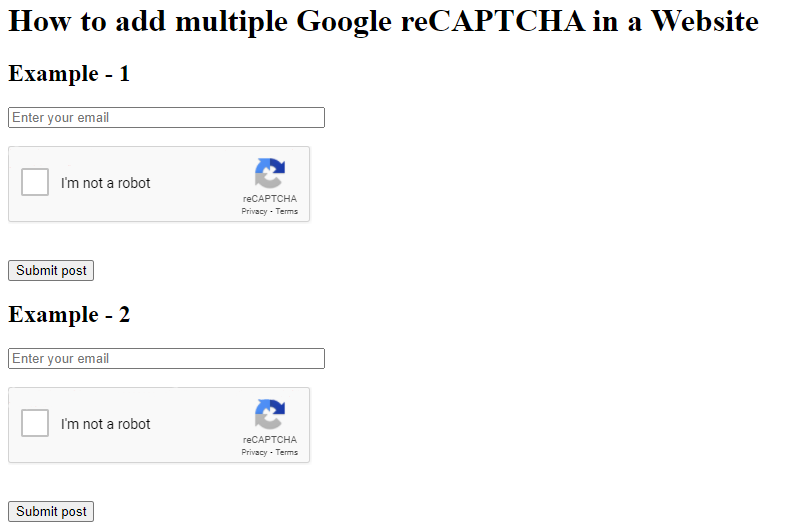
<form action="/add_post.php" method="post">
    <h2>Example Form 1</h2>
    <input type="email" placeholder="Enter your email" size="40"><br><br>
    <div id="g-recaptcha"></div><br><br>
    <input type="submit" value="Submit Post">
</form>

<form action="/add_post.php" method="post">
    <h2>Example Form 2</h2>
    <input type="email" placeholder="Enter your email" size="40"><br><br>
    <div id="g-recaptcha-2"></div><br><br>
    <input type="submit" value="Submit Post">
</form>
The IDs g-recaptcha and g-recaptcha-2 will be rendered individually.
3. Render Each Widget in JavaScript
Inside your script, check if the container exists before rendering. This approach avoids errors if a form is hidden or loaded conditionally.
<script>
    function onloadCallback() {
        if (document.getElementById('g-recaptcha')) {
            grecaptcha.render('g-recaptcha', {
                'sitekey': 'YOUR_SITE_KEY'
            });
        }
        if (document.getElementById('g-recaptcha-2')) {
            grecaptcha.render('g-recaptcha-2', {
                'sitekey': 'YOUR_SITE_KEY'
            });
        }
    }
</script>
Replace YOUR_SITE_KEY with your real site key from Google reCAPTCHA.
Full Working Example
<html>
<head>
    <title>How to add multiple Google reCAPTCHA in a Website</title>
    <script src="https://code.jquery.com/jquery-3.6.0.min.js"></script>
    <script src="https://www.google.com/recaptcha/api.js?onload=onloadCallback&render=explicit"></script>
</head>
<body>

    <h1>Add Multiple Google reCAPTCHA on One Page</h1>

    <form action="/add_post.php" method="post">
        <h2>Example Form 1</h2>
        <input type="email" placeholder="Enter your email" size="40"><br><br>
        <div id="g-recaptcha"></div><br><br>
        <input type="submit" value="Submit">
    </form>

    <form action="/add_post.php" method="post">
        <h2>Example Form 2</h2>
        <input type="email" placeholder="Enter your email" size="40"><br><br>
        <div id="g-recaptcha-2"></div><br><br>
        <input type="submit" value="Submit">
    </form>

</body>

<script>
    function onloadCallback() {
        if (document.getElementById('g-recaptcha')) {
            grecaptcha.render('g-recaptcha', { sitekey: 'YOUR_SITE_KEY' });
        }
        if (document.getElementById('g-recaptcha-2')) {
            grecaptcha.render('g-recaptcha-2', { sitekey: 'YOUR_SITE_KEY' });
        }
    }
</script>
</html>
Common Mistakes to Avoid
❌ Using the script without render=explicit
This causes only one widget to auto-render.
❌ Using duplicate container IDs
Every widget must have its own id.
❌ Rendering before script loads
Always use a callback or wait for DOM load.
Final Thoughts
Adding multiple Google reCAPTCHA widgets to one page is simple once you understand the rendering approach. The key idea is to load the script once, then render every widget manually with a unique ID. You can apply this technique to any form or page structure.
Also read: How to integrate Google reCAPTCHA in Laravel
Output